Binance Data Adapter for NinjaTrader 8
Spot pairs and perpetual futures in NinjaTrader 8: history down to every trade, live prices and full SuperDOM depth.
Spot pairs and perpetual futures in NinjaTrader 8: history down to every trade, live prices and full SuperDOM depth.
Why NC Binance Adapter
Crypto trades around the clock, and following it on another platform means new charts, new tools and new habits. NC Binance Adapter brings Binance's spot pairs and perpetual futures into NinjaTrader 8: history from daily bars down to every single trade, live prices, and the full order book in the SuperDOM. No Binance account or API key needed.
The adapter is a NinjaTrader connection. It reads Binance's public market data, so no Binance account or API key is needed.
Spot pairs, USD-M and COIN-M perpetuals. Pick the symbols you want in one window.
Daily and 1-minute bars, plus every trade from Binance's daily archives for tick, Renko, range and footprint charts.
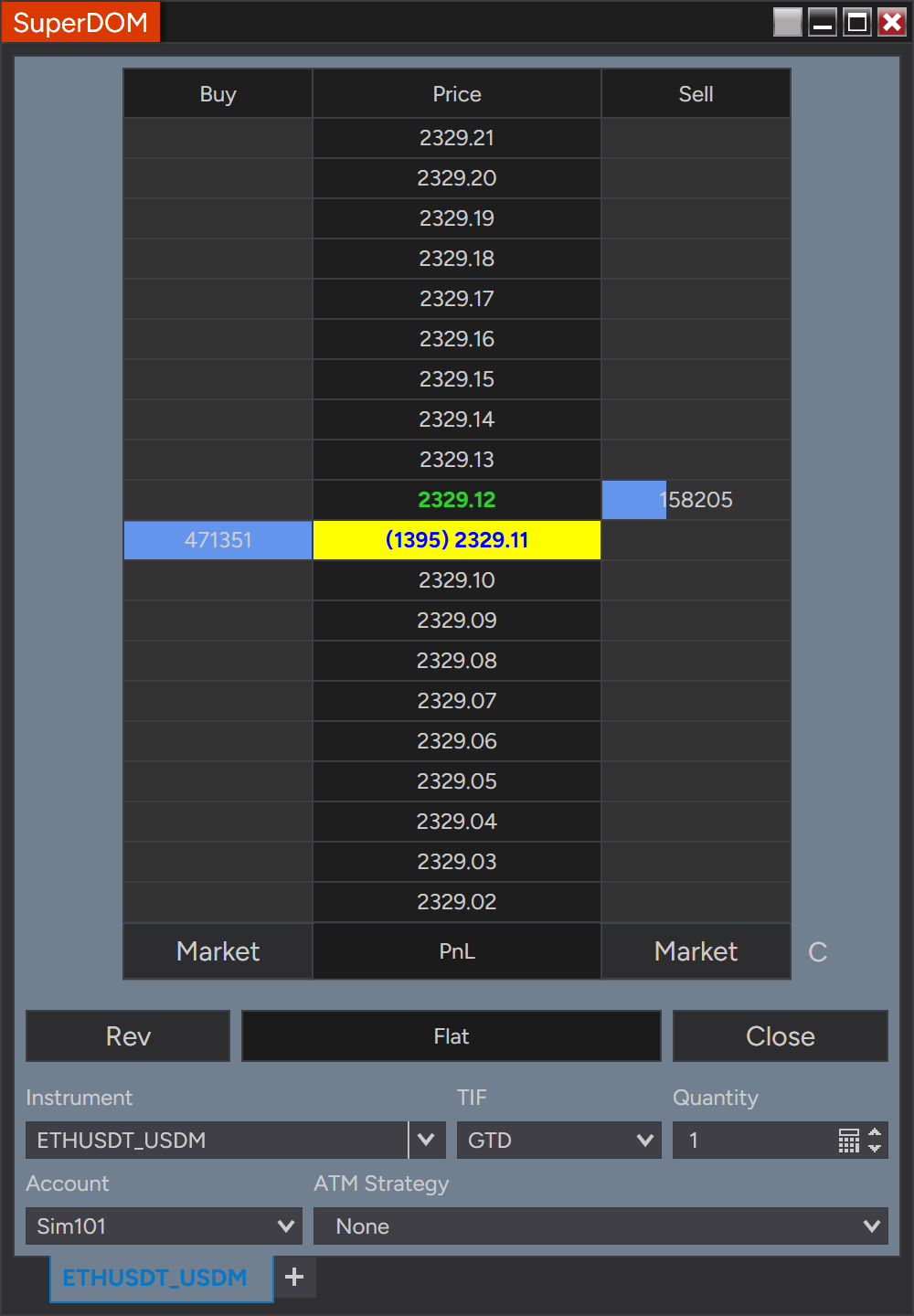
Last trade, bid and ask, and an order book kept in sync with Binance for the SuperDOM.
Volume is the traded value in the quote currency, so the volume of different coins compares directly.
Charts and history
Open a chart, type the instrument name and choose any bar type. The adapter loads exactly the history NinjaTrader asks for.
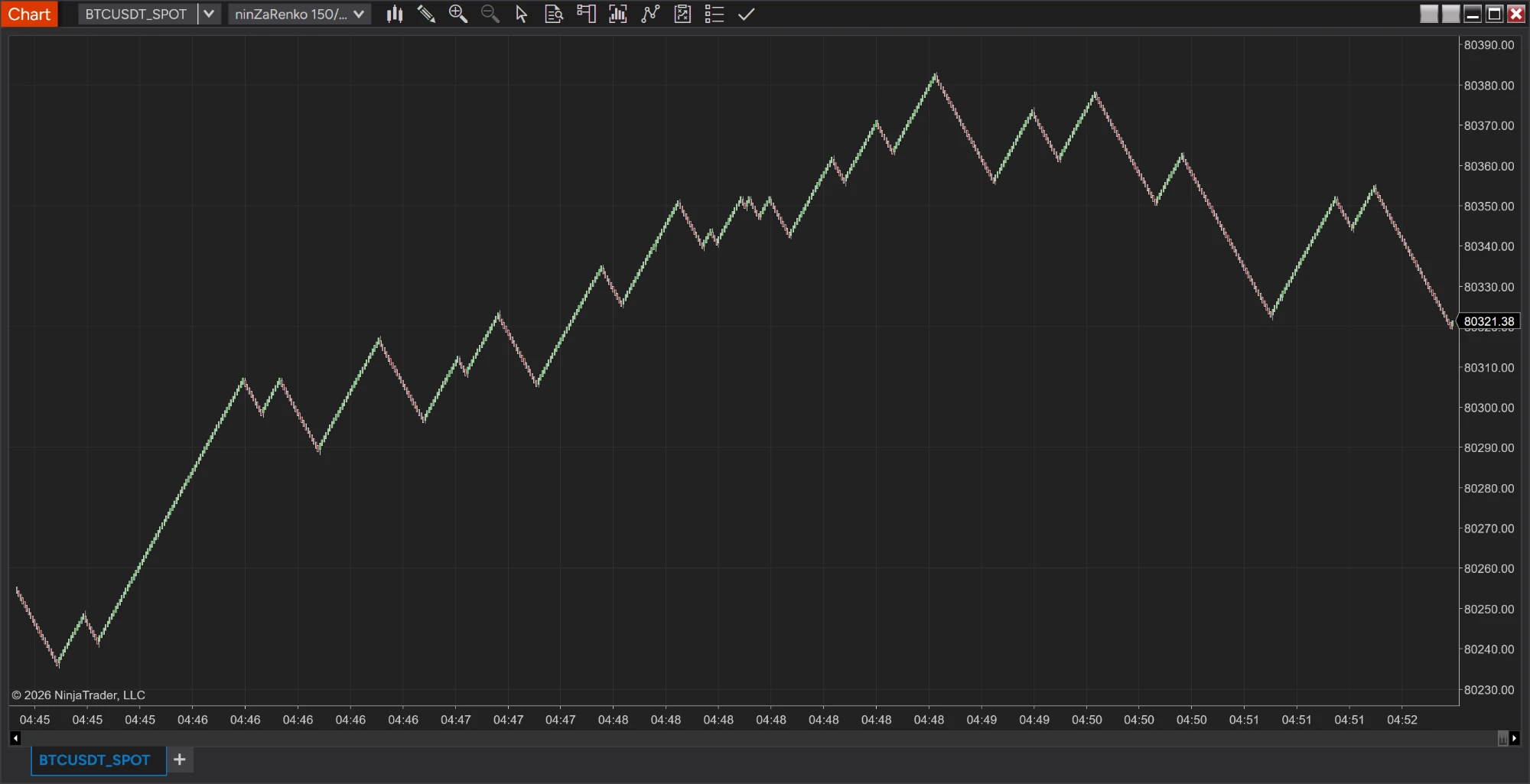
| Bar type on the chart | Data loaded from Binance |
|---|---|
| Day, Week, Month, Year | Daily bars, one per UTC day as on Binance. |
| Minute, and every timeframe NinjaTrader builds from minutes | 1-minute bars, four requests at a time. A month takes about 4 seconds, a year about 40 seconds. |
| Tick, Second, Renko, Range, Volume and other bars built from ticks | Every trade, from Binance's daily archives and its API. |
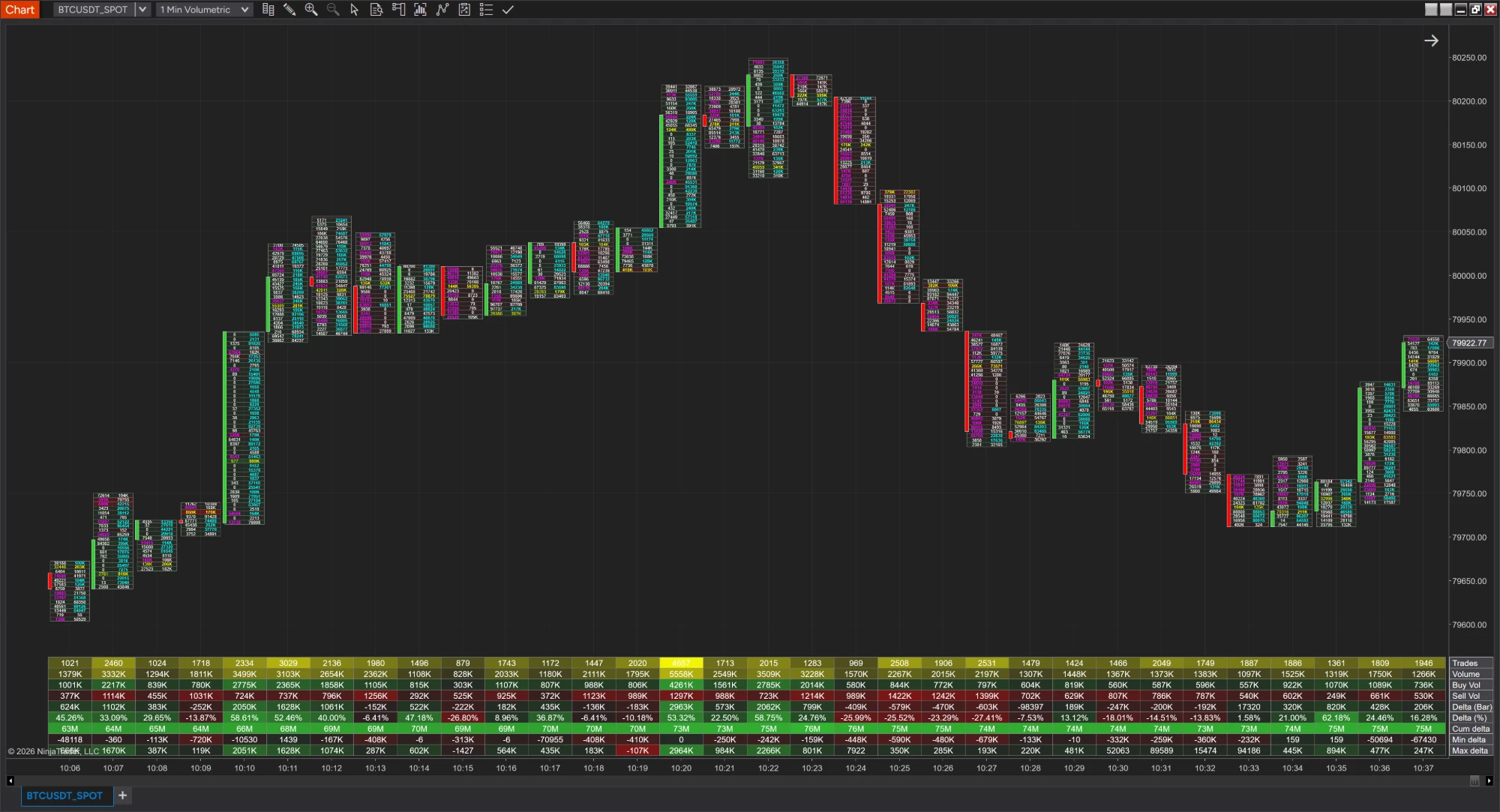
Because every trade lands on the right side, NinjaTrader's Volumetric bars show real bid and ask volume at each price on Binance symbols, with delta and cumulative delta for every bar. History and live trades both. Volumetric bars are part of NinjaTrader's Order Flow+.
Tick data
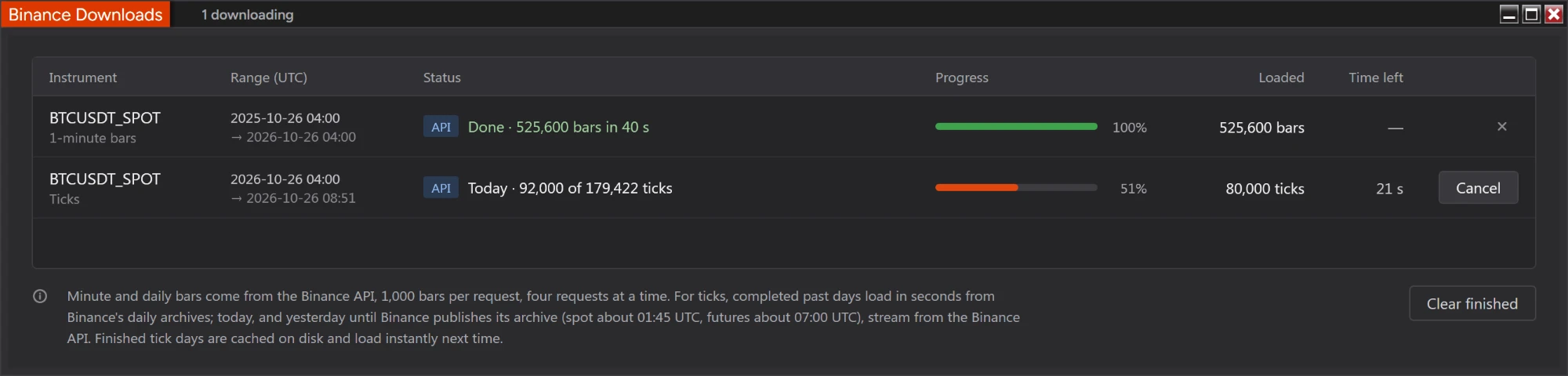
Binance publishes a file with every trade of each day. The adapter downloads those files four at a time, keeps them on disk, and asks the Binance API only for the hours that aren't in a file yet.
| Day | Where its ticks come from |
|---|---|
| Past days | Binance's daily archive file, downloaded once and kept on disk. A few seconds per day. |
| Yesterday, until Binance publishes its file | The Binance API, then kept on disk. Spot files arrive about 01:45 UTC, futures about 07:00 UTC. |
| Today | The Binance API, downloaded once and kept on disk. Later loads ask only for the ticks since the last one. Busy futures symbols arrive at about 100,000 ticks per minute. |
Live data and Level 2
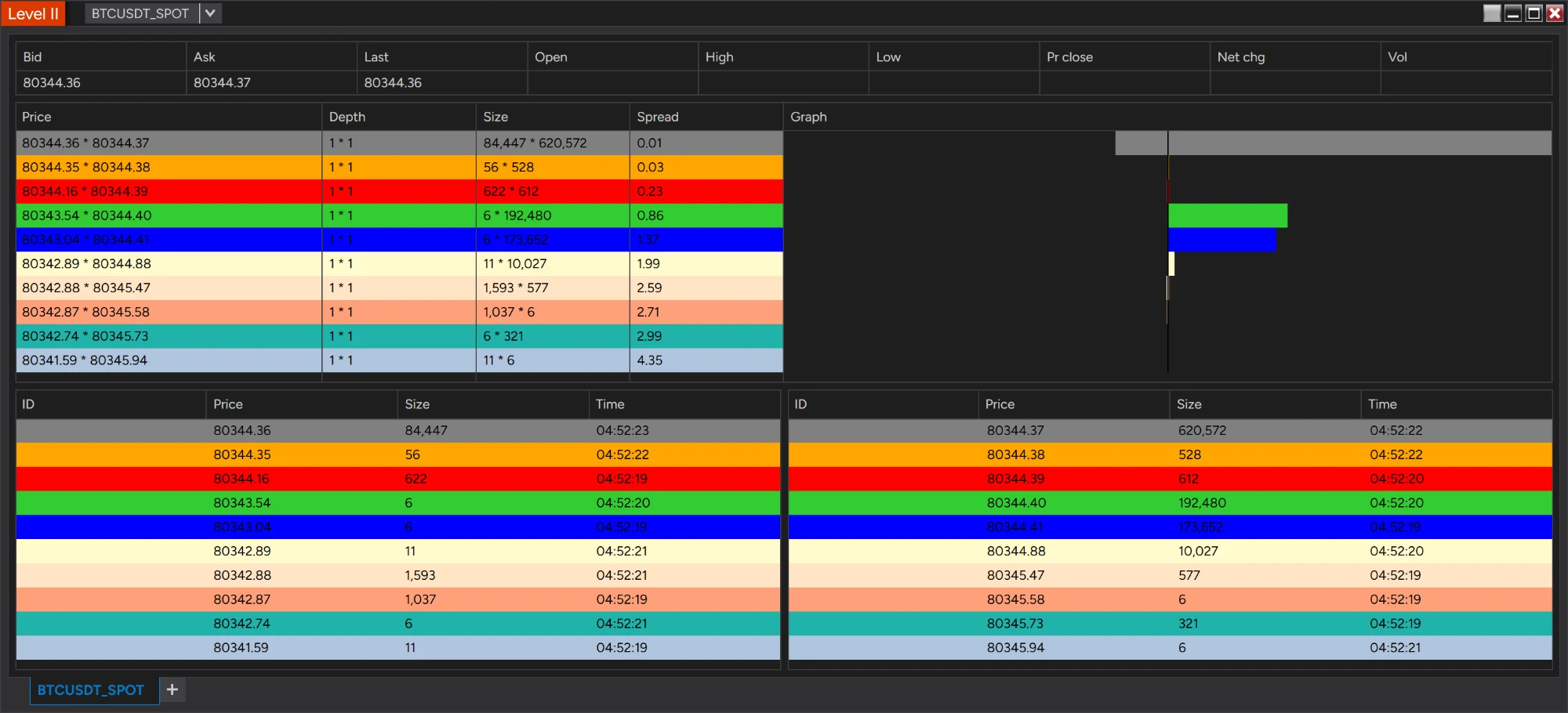
While connected, charts update with every trade, and bid and ask follow Binance's best bid and ask. For the SuperDOM and Level II the adapter keeps its own copy of Binance's order book: it starts from a snapshot, applies every change Binance sends, checks that no change was missed, and reloads the book by itself if one was.
Setup
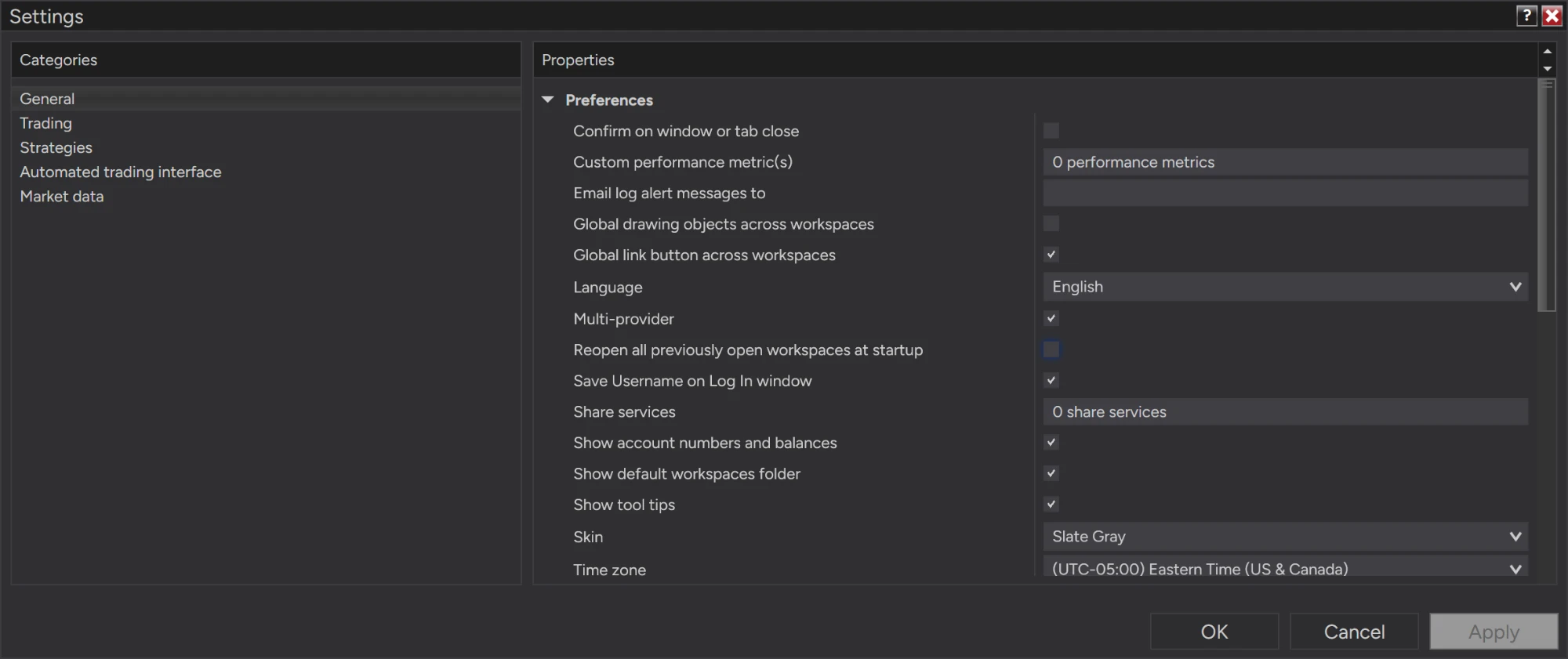
Tools → Options → General, tick Multi-provider and restart NinjaTrader. Without it the Binance connection doesn't show up.
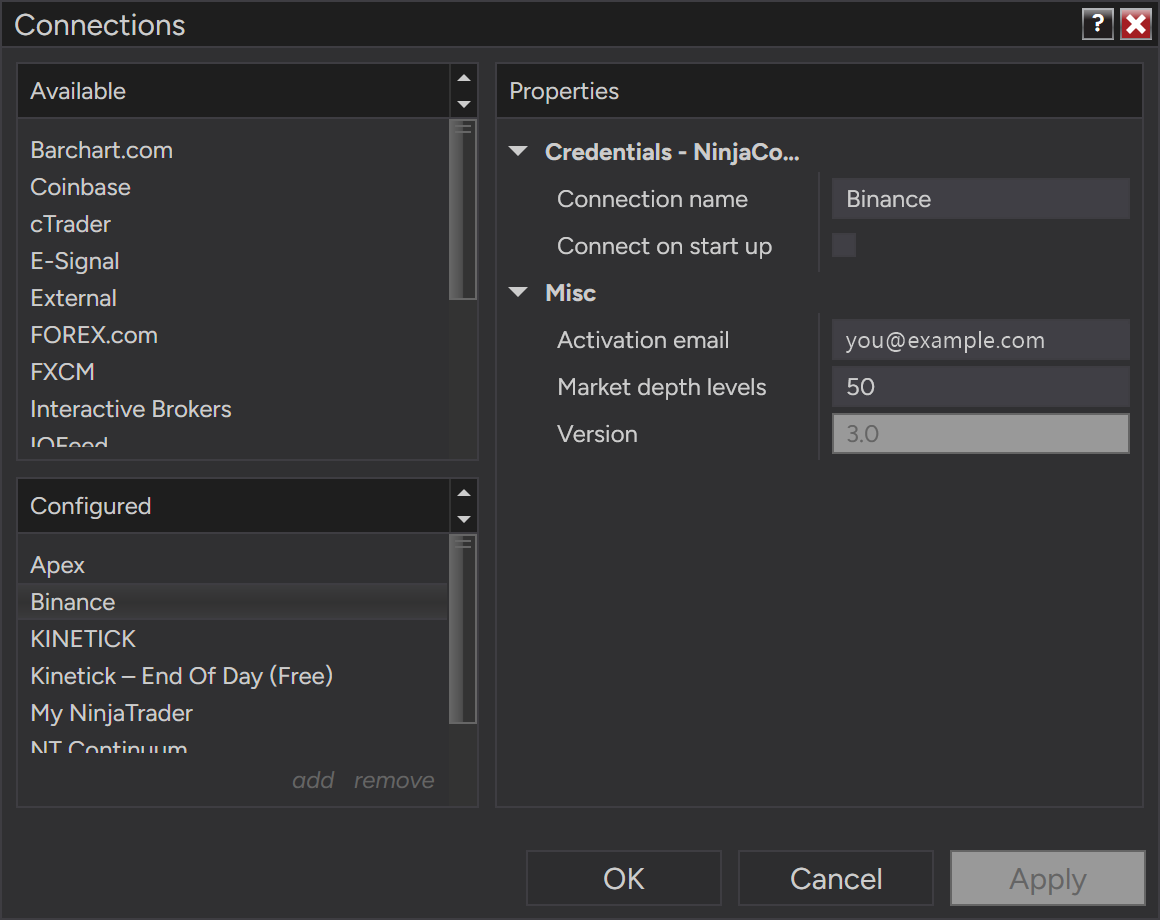
Connections → Configure, add NinjaConnectors Binance and enter the email of your ninjacoding.net account. That's the only setting you need.
New → Binance Symbols lists every one of Binance's 4,700+ spot, USD-M and COIN-M symbols. Search, then add the ones you want in one click.
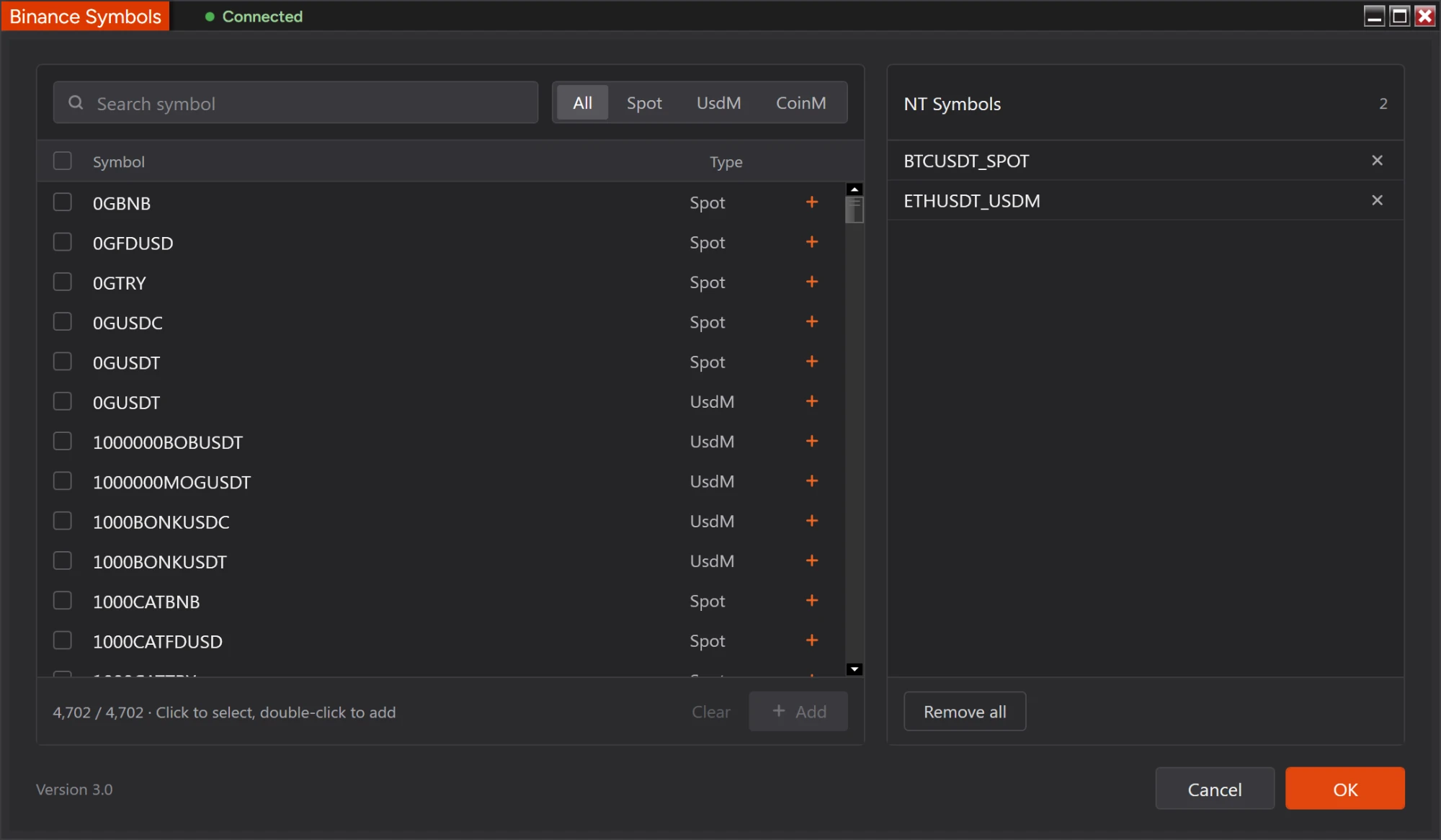
Type the instrument name and choose any bar type. Each symbol becomes a NinjaTrader instrument named after its market:
| Market | Binance | NinjaTrader |
|---|---|---|
| Spot | BTCUSDT | BTCUSDT_SPOT |
| USD-M perpetual | BTCUSDT | BTCUSDT_USDM |
| COIN-M perpetual | BTCUSD_PERP | BTCUSD_PERP_COINM |
Who it's for
You already chart futures or stocks in NinjaTrader and want Binance next to them, with the same indicators and workspaces.
You need tick history for Renko, range and footprint charts, and buy and sell volume that classifies trades the right way.
You want to test crypto ideas in the Strategy Analyzer on Binance's full trade history, down to the tick.
Before you buy
A data connection has limits of its own. Here's what to expect.
Getting connected
No Binance account and no API keys. Your license is checked each time the connection connects, with the email of your ninjacoding.net account.
FAQ
No. The adapter is a data connection only; it doesn't send orders to Binance.
No. The adapter reads Binance's public market data.
Yes. NinjaTrader's Volumetric bars build from the adapter's tick history and live trades. Each trade is placed at the bid or the ask by the side that started it, so the footprint shows real buy and sell volume at every price, with delta for each bar. Volumetric bars are part of NinjaTrader's Order Flow+.
To the day the symbol was listed on Binance, for example 17 August 2017 for BTCUSDT spot and 8 September 2019 for BTCUSDT USD-M.
Turn on Multi-provider mode under Tools → Options → General and restart NinjaTrader.
Check your internet connection and firewall. Binance blocks access from some countries; there the adapter can't load data.
Connect the Binance connection. The list loads on the first connect and is remembered after that.
The adapter is downloading Binance's daily files; the Binance Downloads window shows the progress. The next load comes from disk and from NinjaTrader's database.
No. Today's ticks come from the Binance API once and are kept on disk, so the next load reads them from there and asks Binance only for the trades since. Past days come from Binance's daily files on disk.
Binance has no trade file for that day, usually because the symbol wasn't listed yet. The chart has no ticks for that day.
In Documents\NinjaTrader 8\NCBinanceCache, one file per symbol and day. You can delete the folder while NinjaTrader is closed to free space; days are downloaded again when needed.
The connection doesn't connect, and a License Issue box and the Log tab say why. Check that the Activation email is the one you bought the adapter with. If the message says the machine ID doesn't match, update it in your ninjacoding.net account; NinjaTrader shows it under Help → About. If the license server didn't answer, check your internet connection and firewall.
Uninstall it first: Windows Settings → Apps → BinanceAdapter → Uninstall. The Binance instruments you created with it are kept and converted the first time you connect.
NinjaTrader only accepts a short list of currency pairs as crypto, so the instruments are created with the type Stock. The type has no effect on charts, data or the SuperDOM.
Spot and perpetual futures, every tick, full depth.
View Price145.00 USD
Choose the License Type That Fits Best
Check Out What Else is Available